
This article describes how to add a payment method in your Feathr account to keep on file for monthly license invoices.
Start by logging in to your Feathr account. Navigate to Account Settings, then choose Billing, then Configurations on the left hand side of the screen.
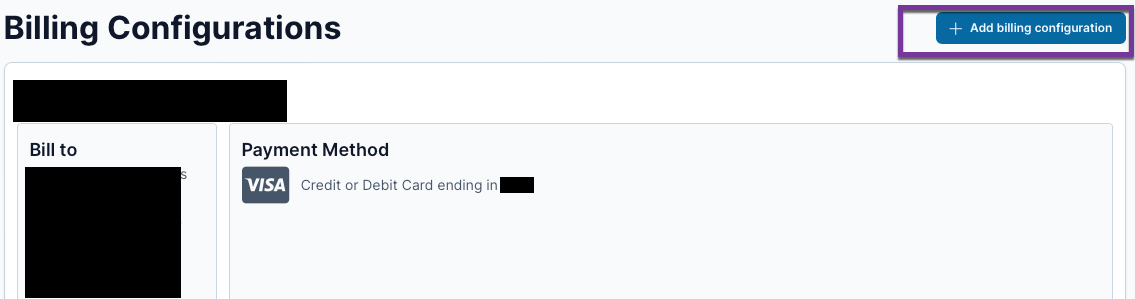
This will open the Billing Configurations Manager, where you can add a new billing configuration by selecting the Add billing configuration button in the top right of the page.
This brings up the New Billing Configuration Page that contains a simple form to add a payment method to keep on file. Enter your full name, email, and a descriptive name for this billing configuration:
Next, enter the billing address associated with the credit card or bank account being added. This is required.
Next, choose whether the payment type is Credit Card or Bank account (ACH). For bank account, you'll be asked to provide the Routing Number and Account number. For a detailed walkthrough for adding an ACH payment method, see this article.
Note that credit card payments in Feathr incur a 2.5% convenience fee.
Press the Confirm button to finalize this payment method for the billing configuration.
The Usage box allows you to designate this billing configuration as the primary configuration moving forward:
Note that this designates the configuration to be used for Feathr license renewal as well as media bills. Once the payment method is added and authorizations are in place, the upcoming renewal invoices will be charged to your payment method on file on the due date.
To finalize this process, you must press the Save button at the bottom right of your screen to complete the process of adding this billing configuration.